AI Notes
AI Notes for Data Analysts
How to Summarize Dashboard Walkthroughs
Data Analysts frequently conduct dashboard walkthroughs to present findings and insights. Keeping detailed notes during these sessions is crucial to ensure that key insights are captured and can be referenced later. Effective note-taking helps in making informed decisions and communicating insights clearly with team members or stakeholders. AI-driven note-taking can streamline this process by providing structured and searchable records of discussions.
But what should you include in your meeting notes? We have compiled a list of key points to include in your meeting notes.
Key points to include in meeting notes for data analysts
- Participants:Who were the key participants in the dashboard walkthrough, and what are their roles?
- Purpose:What was the main objective or purpose of this dashboard walkthrough meeting?
- Dashboard Overview:What specific dashboards or metrics were reviewed during the meeting?
- Key Insights:What were the primary insights or findings discussed during the walkthrough?
- Data Sources:Which data sources are integrated into the dashboard, as mentioned in the transcript?
- Performance Metrics:Were there any performance metrics highlighted as particularly important, and why?
- Challenges/Issues Identified:Did any challenges or issues with the current dashboard setup come up during discussions?
- Recommendations/Next Steps:Were there any recommendations or proposed next steps to improve the dashboard's effectiveness?
- User Feedback/Input Provided?:Was there feedback from users on how they interact with or interpret data from this dashboard?
How to automate
But why take notes manually when you can use AI to do it for you? Today's AI can transcribe meetings, summarize key points, and even identify action items. Instead of being distracted by typing and writing notes, you can focus on the conversation.
Here's how:
- If you don't already have a voice recorder that allows you to customize your summaries, download LazyNotes from the App Store.
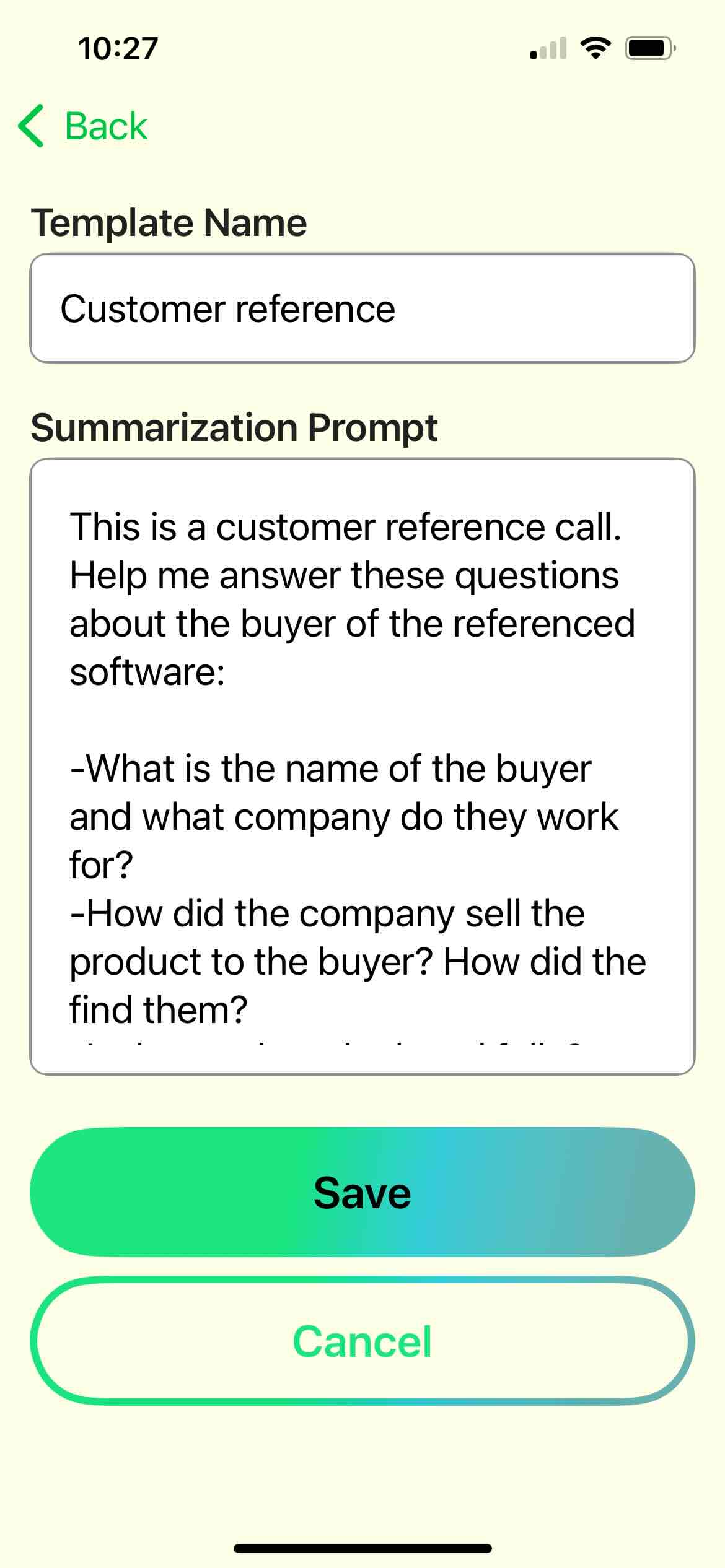
- Navigate to Settings > Meeting Templates and tap the + button.
- Copy/paste one of our templates and/or customize your own. Tap Save.
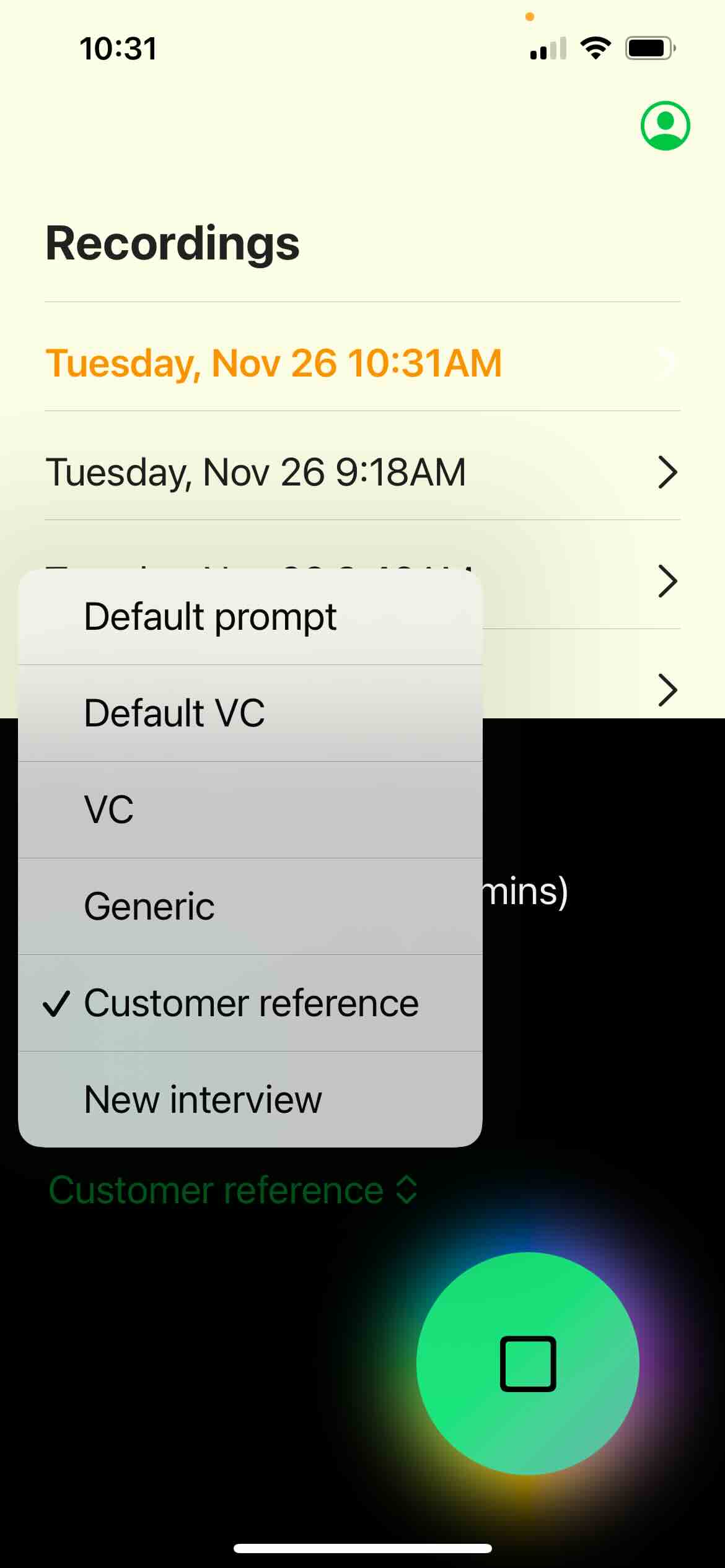
- Start your first recording and choose your new template any time during the call.
- Enjoy customized notes emailed right to your mailbox!