AI Notes
AI Notes for Researchers
How to Summarize Data Analysis Presentations
Researchers often present complex data analyses that require precise understanding and detailed documentation. Effective note-taking ensures that key insights are captured accurately and can be referenced later or shared with colleagues. Structured notes help maintain clarity and facilitate further discussion or collaboration on the research findings.
But what should you include in your meeting notes? We have compiled a list of key points to include in your meeting notes.
Key points to include in meeting notes for researchers
- Meeting Participants:Who were the key participants in the data analysis presentation?
- Presentation Objective:What was the main objective or goal of the data analysis presentation?
- Data Sources:What specific data sources were discussed or analyzed during the meeting?
- Methodologies Used:Which data analysis methodologies or techniques were employed in this presentation?
- Key Findings:What were the most significant findings or insights shared during the presentation?
- Challenges Faced:Were there any challenges or obstacles identified in relation to the data analysis process?
- Recommendations Given:What recommendations or action items resulted from the findings of this presentation?
- Tools and Software Used:Which tools, software, or platforms were mentioned as part of the data analysis process?
- Stakeholder Impact:How might these findings impact stakeholders involved in this project or decision-making process?
- maxPotential Applications:What potential applications for future projects could arise from these findings and analyses?
How to automate
But why take notes manually when you can use AI to do it for you? Today's AI can transcribe meetings, summarize key points, and even identify action items. Instead of being distracted by typing and writing notes, you can focus on the conversation.
Here's how:
- If you don't already have a voice recorder that allows you to customize your summaries, download LazyNotes from the App Store.
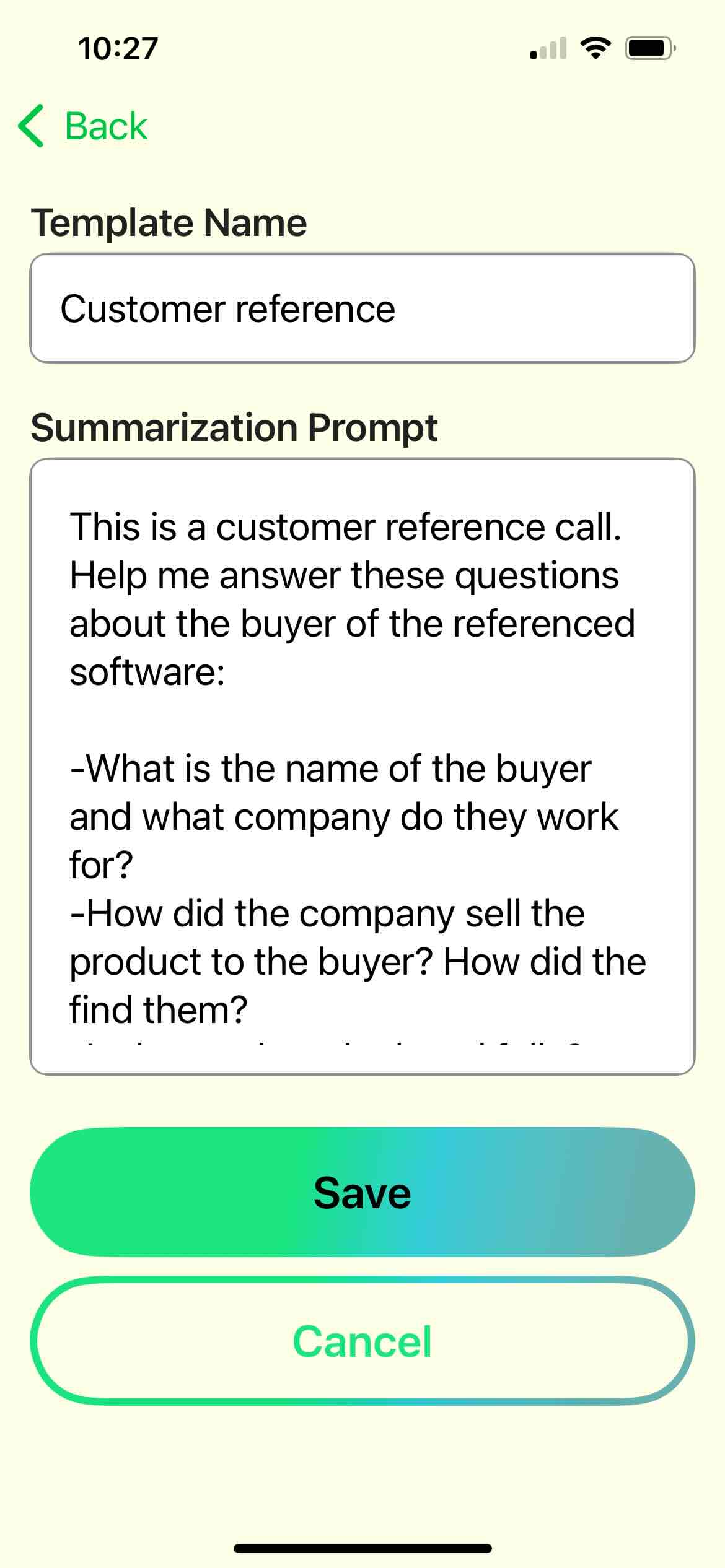
- Navigate to Settings > Meeting Templates and tap the + button.
- Copy/paste one of our templates and/or customize your own. Tap Save.
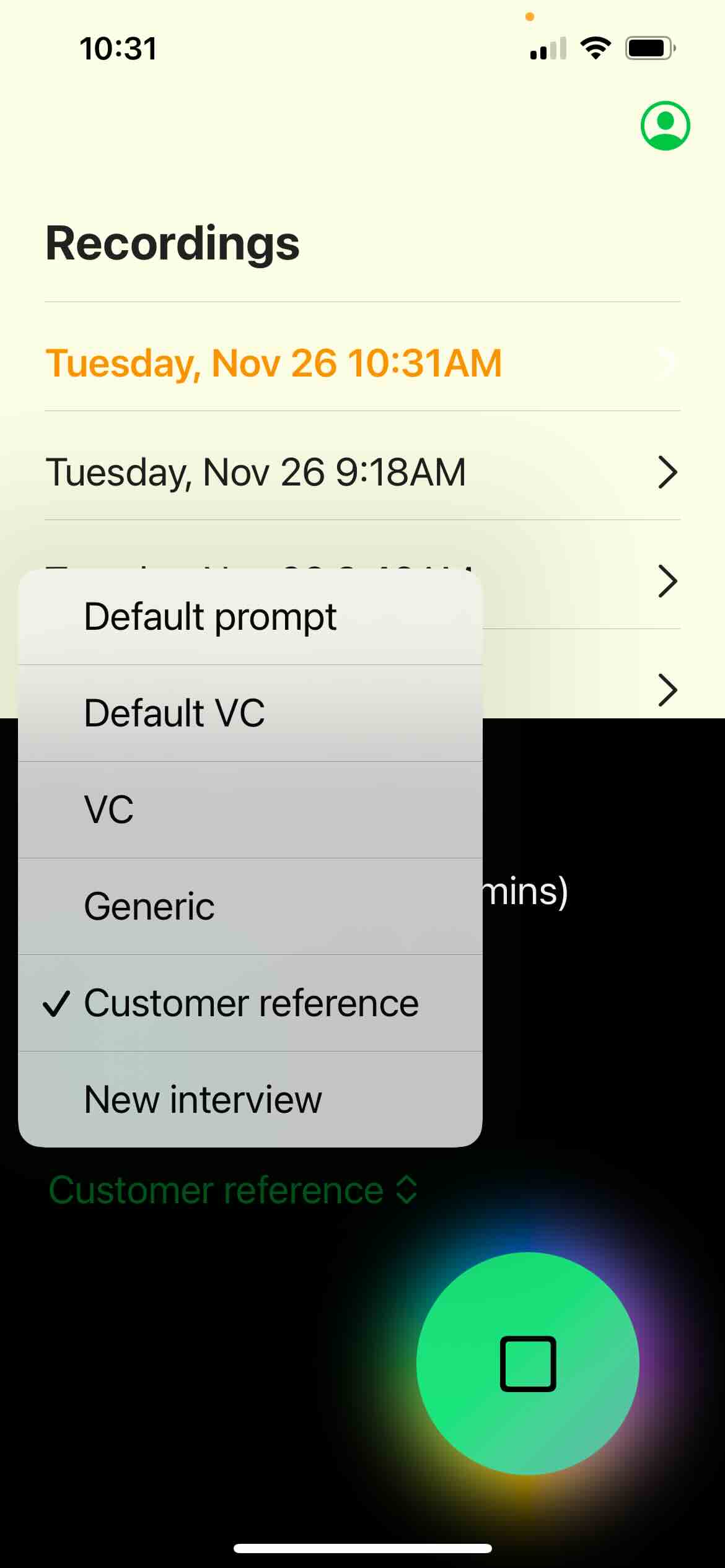
- Start your first recording and choose your new template any time during the call.
- Enjoy customized notes emailed right to your mailbox!