AI Notes
AI Notes for Writers
How to Summarize Content Calendar Planning Sessions
Writers often engage in content calendar planning sessions to strategize and organize their upcoming projects. Keeping detailed and structured notes during these meetings ensures that no idea is lost and that every piece of content is aligned with the overall strategy. Effective note-taking also aids in collaboration with other team members, ensuring everyone is on the same page.
But what should you include in your meeting notes? We have compiled a list of key points to include in your meeting notes.
Key points to include in meeting notes for writers
- Meeting Participants:Who were the participants involved in the content calendar planning meeting?
- Objectives and Goals:What were the main objectives or goals outlined for this content calendar planning session?
- Content Themes:What key themes or topics were proposed for upcoming content pieces?
- Timeline and Deadlines:What are the important timelines and deadlines discussed for the content rollout?
- Roles and Responsibilities:Who is responsible for creating, reviewing, and approving each piece of content?
- Platforms and Channels:Which platforms or channels were identified as priorities for distributing the planned content?
- Target Audience Insights:Were there any specific insights shared about the target audience that will influence content creation?
- Metrics and KPIs:What metrics or key performance indicators (KPIs) will be used to measure the success of this content plan?
- Challenges and Concerns Discussed?:Were there any challenges or concerns mentioned during the meeting regarding executing the plan?
How to automate
But why take notes manually when you can use AI to do it for you? Today's AI can transcribe meetings, summarize key points, and even identify action items. Instead of being distracted by typing and writing notes, you can focus on the conversation.
Here's how:
- If you don't already have a voice recorder that allows you to customize your summaries, download LazyNotes from the App Store.
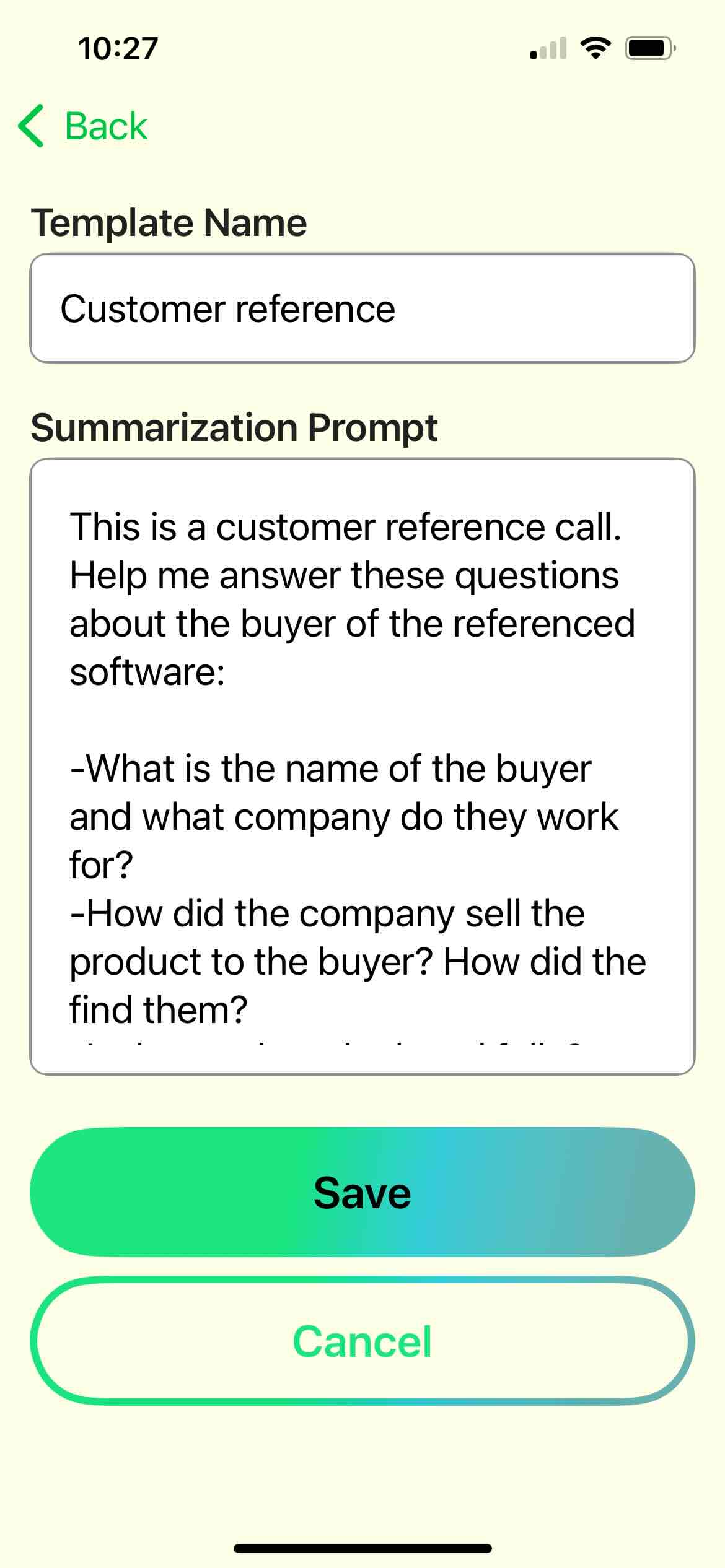
- Navigate to Settings > Meeting Templates and tap the + button.
- Copy/paste one of our templates and/or customize your own. Tap Save.
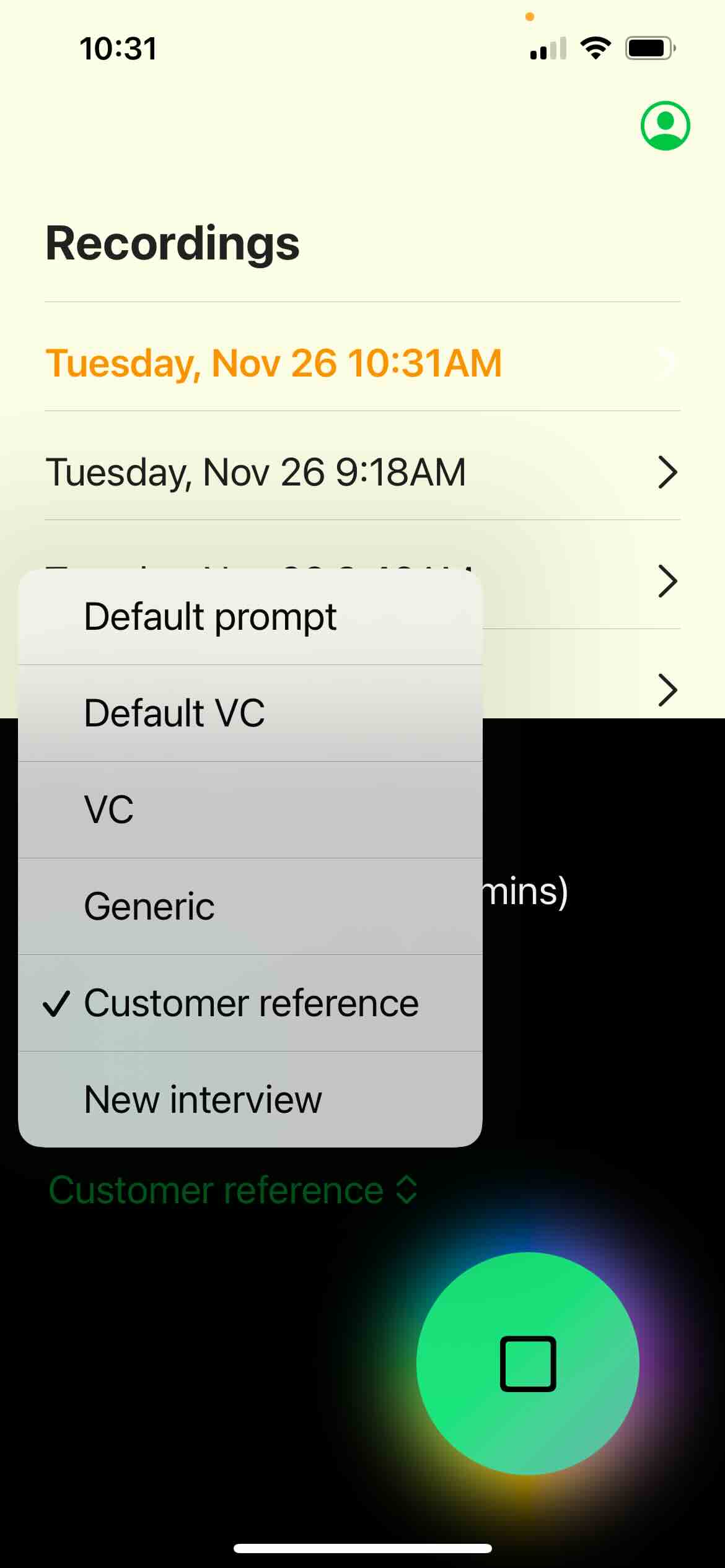
- Start your first recording and choose your new template any time during the call.
- Enjoy customized notes emailed right to your mailbox!